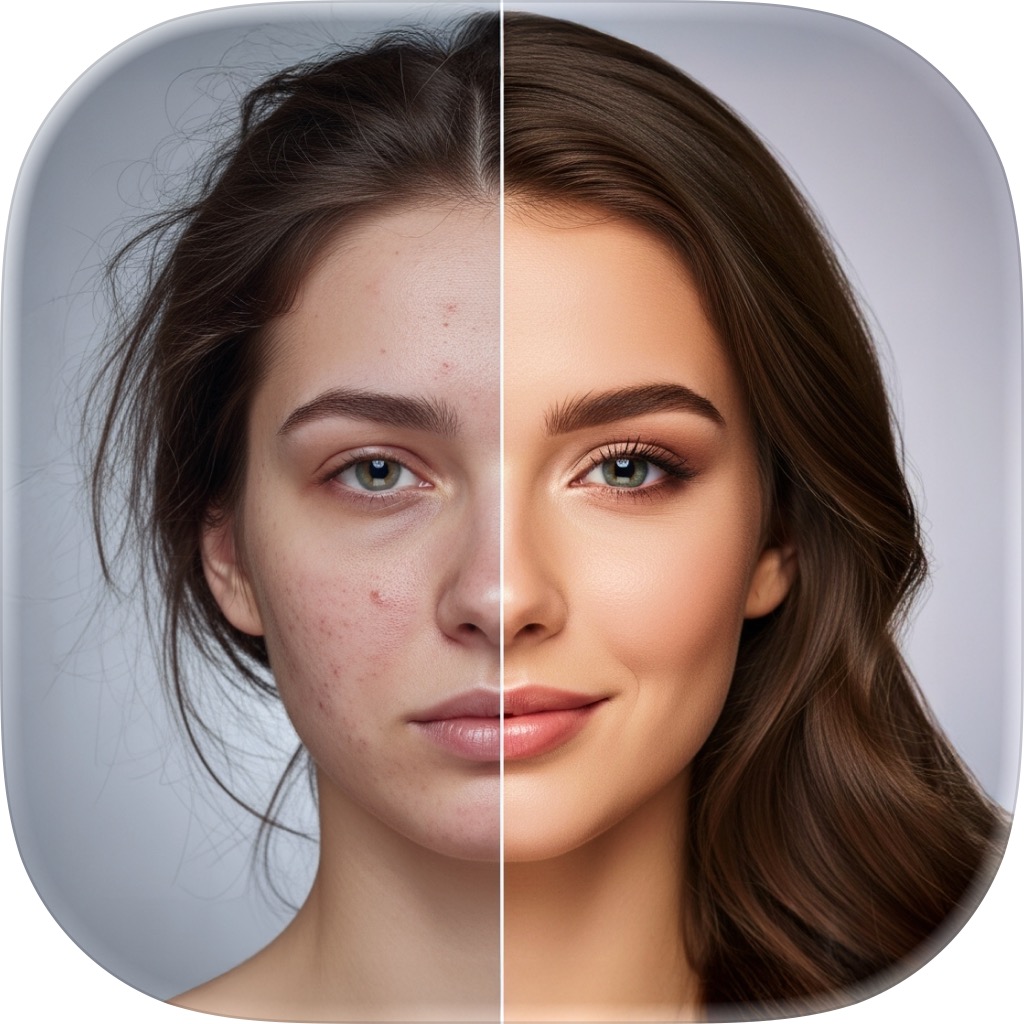
How to restore old photos on your iPhone
That shoebox of faded prints doesn't need a professional restorer. With a phone camera and one tap of AI, a damaged, blurry, or black-and-white photo becomes a clean, vivid digital picture. Here's the whole process.
From faded print to vivid memory
The full workflow, start to finish — it takes minutes for your first photo.
- 1
Digitize the print
Lay the photo flat in bright, even light — near a window works well — and photograph it straight-on with your iPhone camera. Avoid glare, shadows, and angles; fill the frame with the print.
- 2
Open FxAI's Restore tool
Pick the captured image in the Restore tab. FxAI scales it to Full HD so the AI has clean detail to work from — no cropping or preparation needed on your side.
- 3
Tap Restore
One tap repairs scratches and creases, sharpens blur, recovers faded detail, and colorizes black-and-white pictures. The whole pass takes seconds, not hours of manual retouching.
- 4
Compare and save
Drag the before/after slider to see exactly what changed, then save the restored photo to your library or share it with the family group chat.
Tips that make a big difference
The AI does the restoration — your only job is giving it a good starting image. These habits produce noticeably better results.
How Photo Restore works- Photograph prints instead of screenshotting them — resolution matters
- Clean dust off the print (and your lens) before capturing
- Capture the original, not a photo of a photo in a frame with glass
- Restore first, then crop — the AI uses surrounding context
- For badly damaged prints, run Restore, save, and run again on the result
Restored it? Now watch it move.
A restored portrait is wonderful — a restored portrait that smiles is unforgettable. PicAlive, FxAI's sibling app, animates old photos with gentle, realistic motion. Restore in FxAI, animate in PicAlive.
Photo restoration questions
Can FxAI restore very damaged photos?
Does FxAI colorize black-and-white photos?
Will restoring change how people look?
Do I need a scanner to restore old photos?
Can I make the restored photo move?
Rescue your first photo today
Download FxAI free, add an old picture, and watch a lost moment come back.
Rated 4.8 by 2M+ happy users